Install Volt
Download and install Volt on macOS, Windows or Linux, open it past the first-launch warning, use it from the terminal, and update or remove it. Step by step, with screenshots.
Volt is in public beta. Get the latest build from the download page or from
GitHub Releases. Files are named
volt-<channel>-<version>-<os>-<arch>.<ext>, for example volt-stable-0.0.2-darwin-arm64.dmg.
| Your computer | File to download |
|---|---|
| Mac with Apple silicon (M1 and newer) | volt-stable-<version>-darwin-arm64.dmg |
| Mac with an Intel chip | volt-stable-<version>-darwin-x64.dmg |
| Windows 10 or 11 | volt-stable-<version>-win32-x64-user-setup.exe (Arm PCs: win32-arm64) |
| Linux | volt-stable-<version>-linux-<x64, arm64 or armhf> as .deb, .rpm or .tar.gz |
The builds are not code-signed yet
Volt is an independent open-source project and does not have an Apple or Windows signing certificate yet. Your system warns you the first time you open it. That is expected, and the steps below get you past it. The source is public, and you can build Volt yourself if you prefer.
macOS
You need macOS 11 or later. The screenshots are from macOS 26; older versions look a little different, but the steps are the same.
Prefer no dialogs?
Skip to Install from the Terminal. A file downloaded with curl is not quarantined, so macOS
never shows the warning.
Find the download
Open the .dmg you downloaded. It is in your Downloads folder, or wherever your browser saves files. To check which
Mac you have, open the Apple menu, then About This Mac: a chip named Apple M… means Apple silicon.
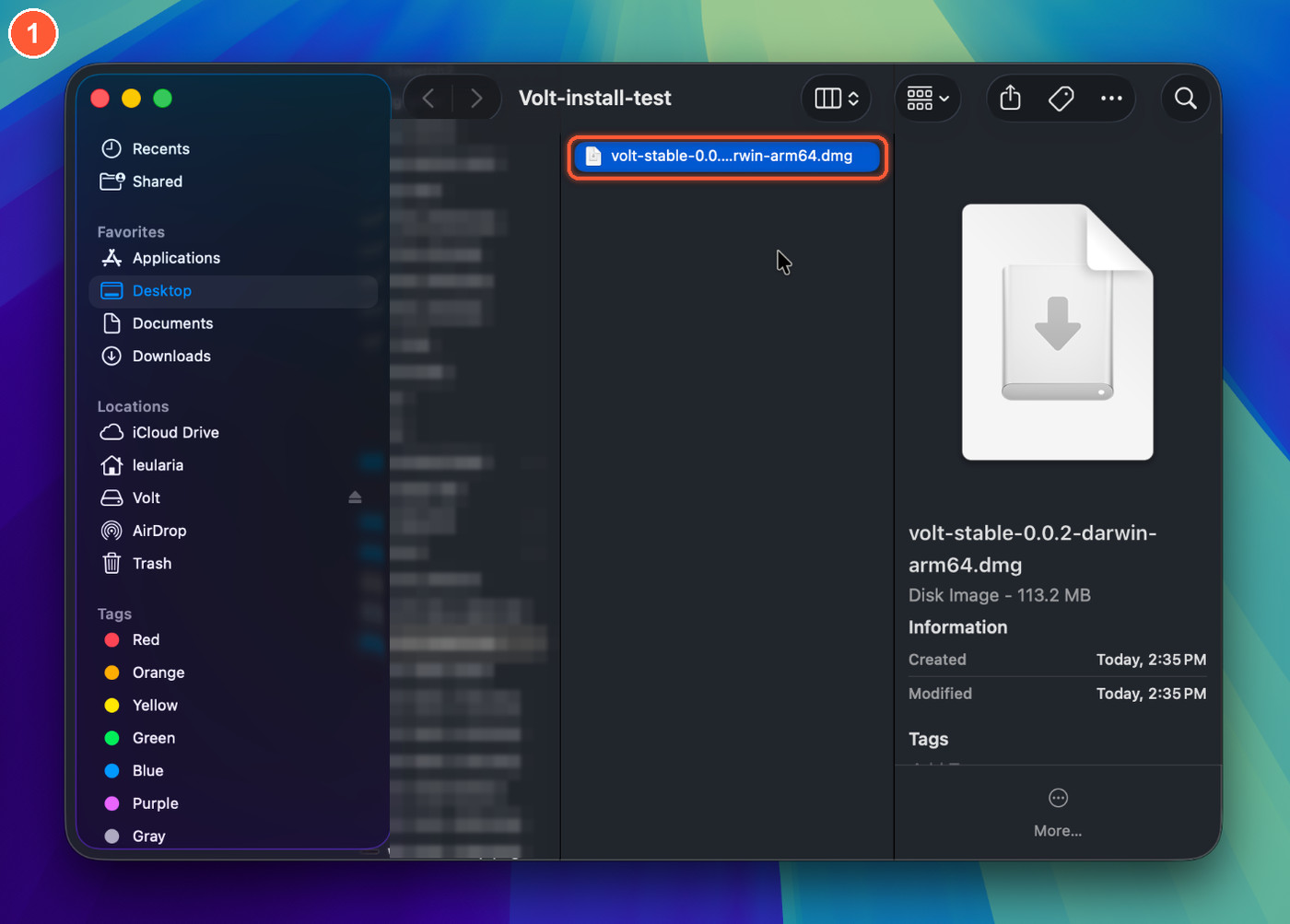
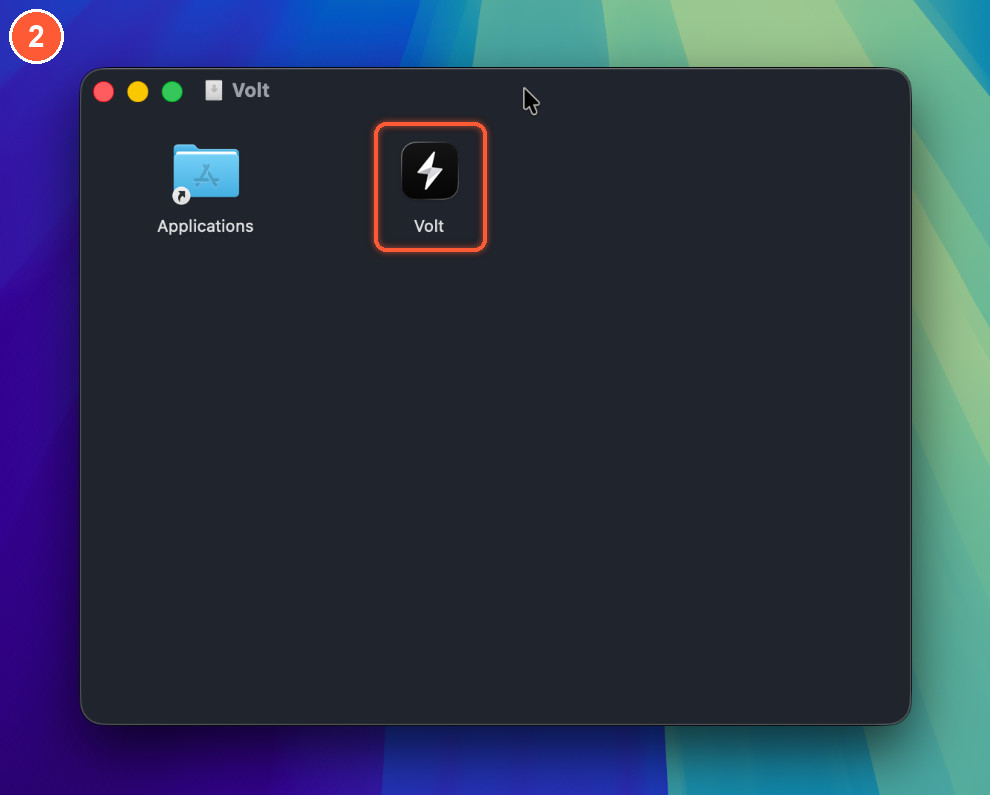
Drag Volt onto Applications
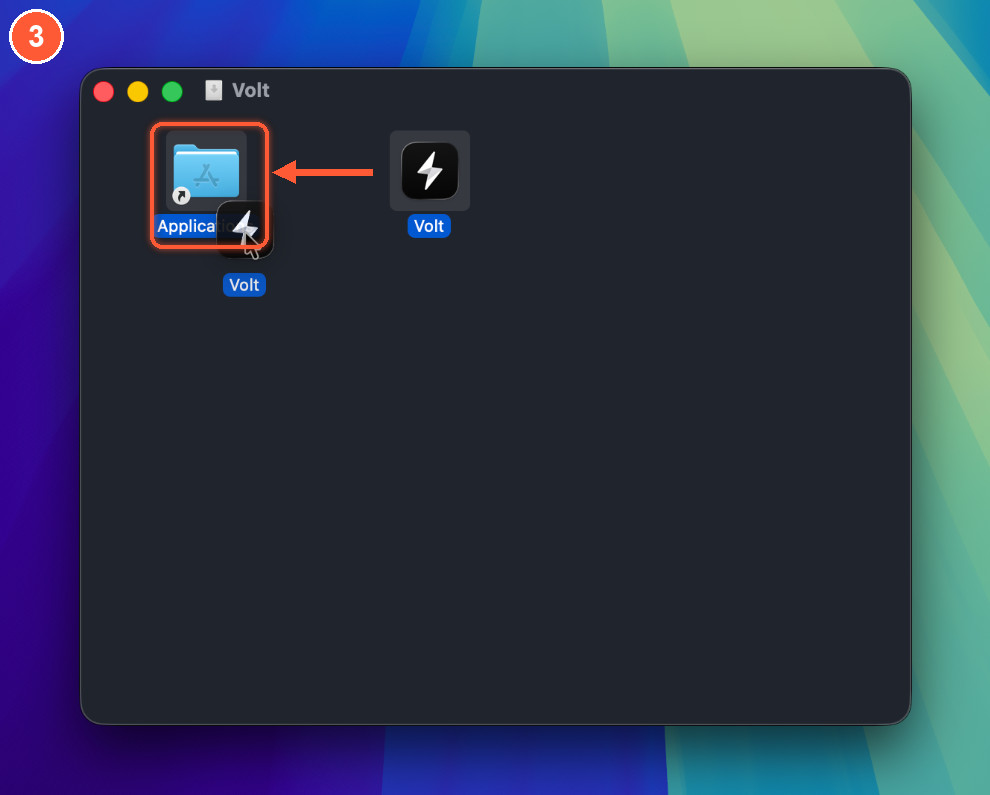
Drag Volt onto the Applications shortcut. Then eject the disk image: in the Finder sidebar, or by dragging it to the Trash.
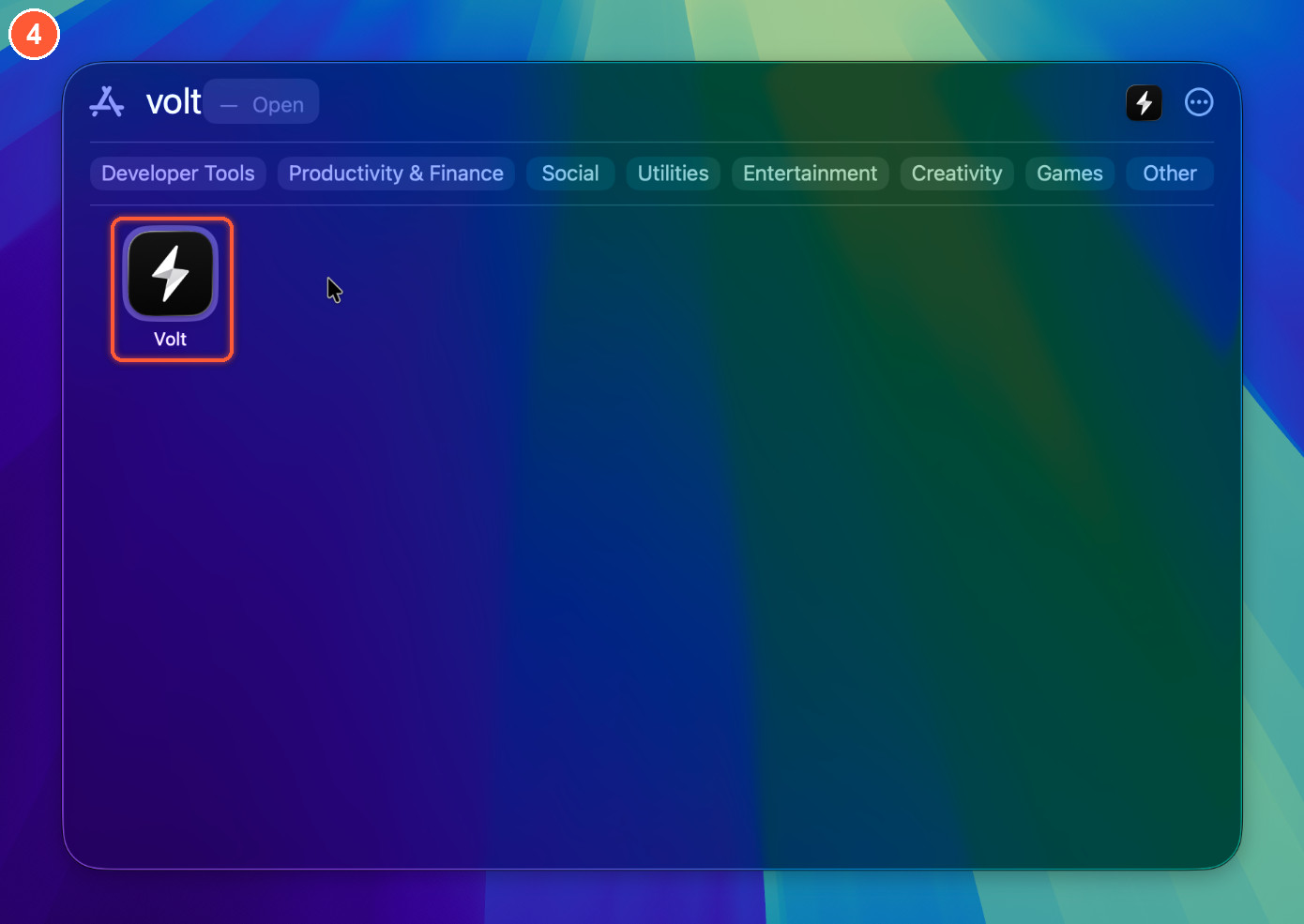
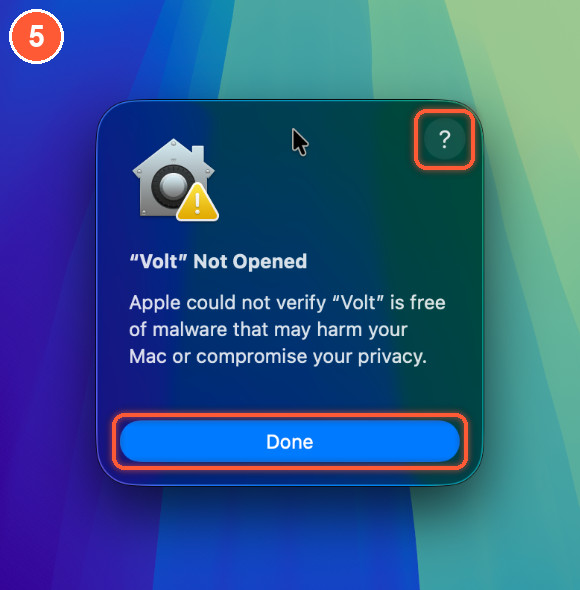
macOS says "Volt" Not Opened
macOS could not verify that Volt is free of malware. That is the warning for any app without an Apple Developer ID. Click Done. The ? in the corner opens Apple's own page about this, which is the quickest way to the next step.
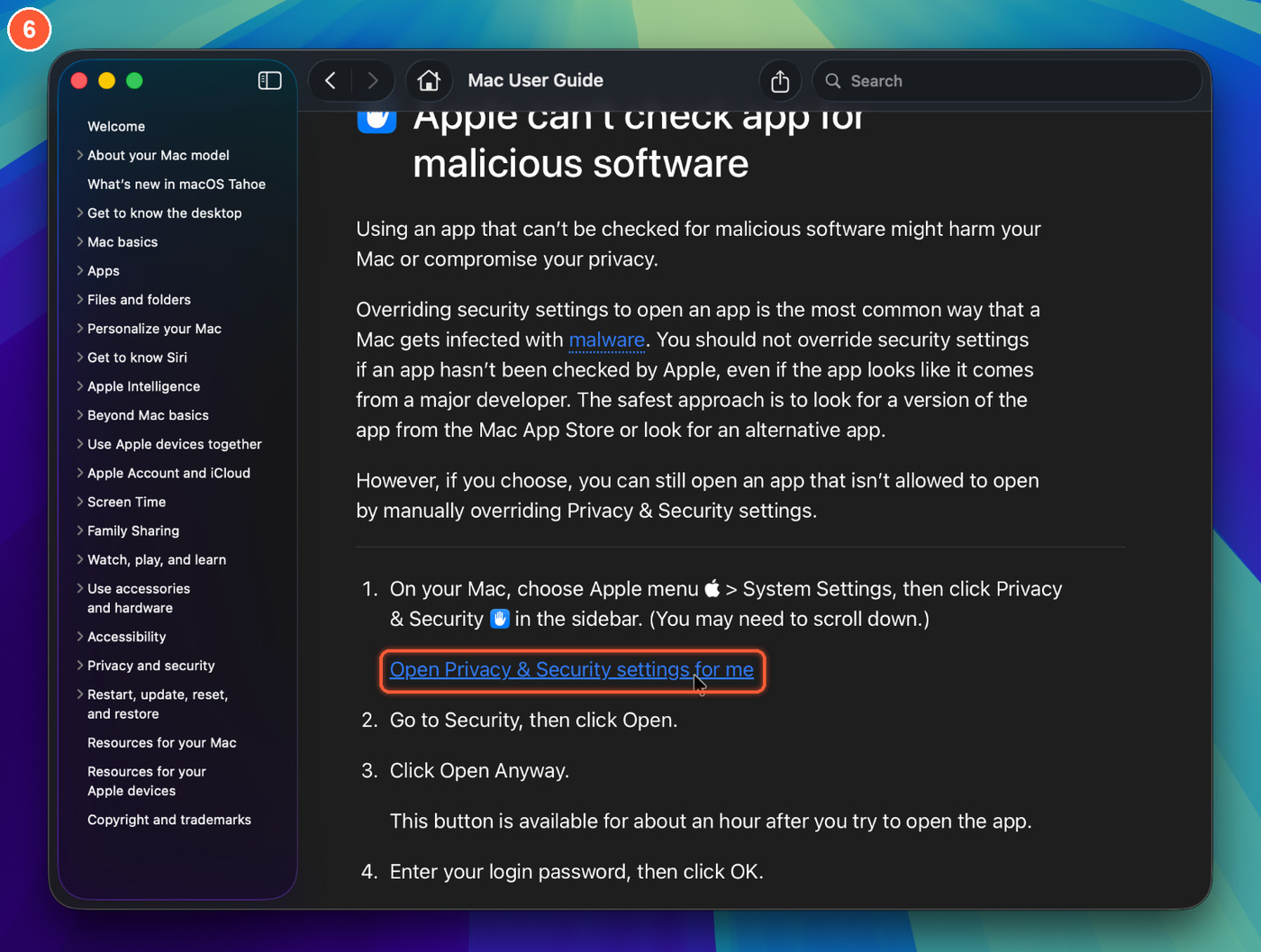
Open the Privacy & Security settings
On Apple's help page, click Open Privacy & Security settings for me. You can also open System Settings yourself.
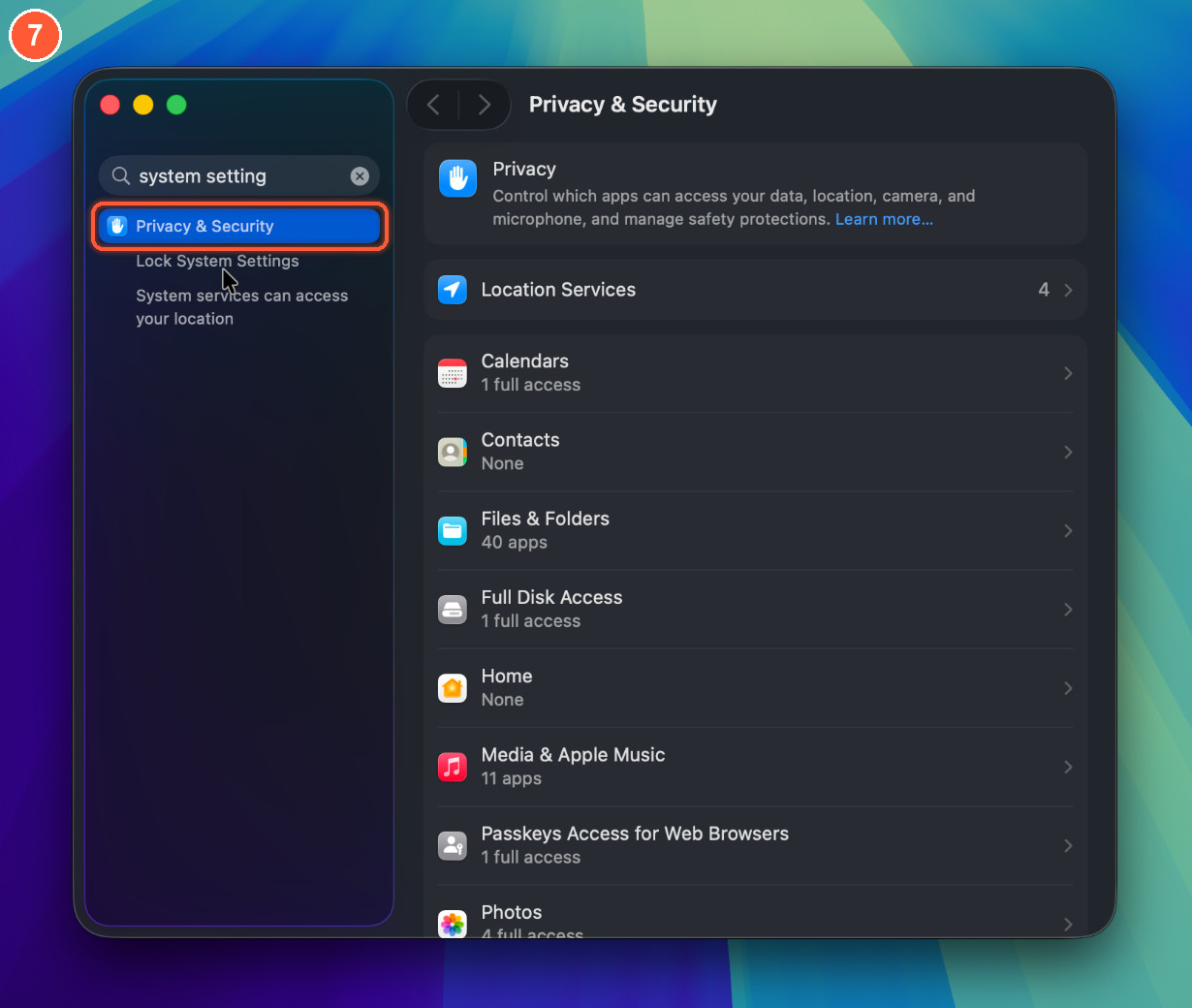
Go to Privacy & Security
In System Settings, choose Privacy & Security in the sidebar, or search for it.
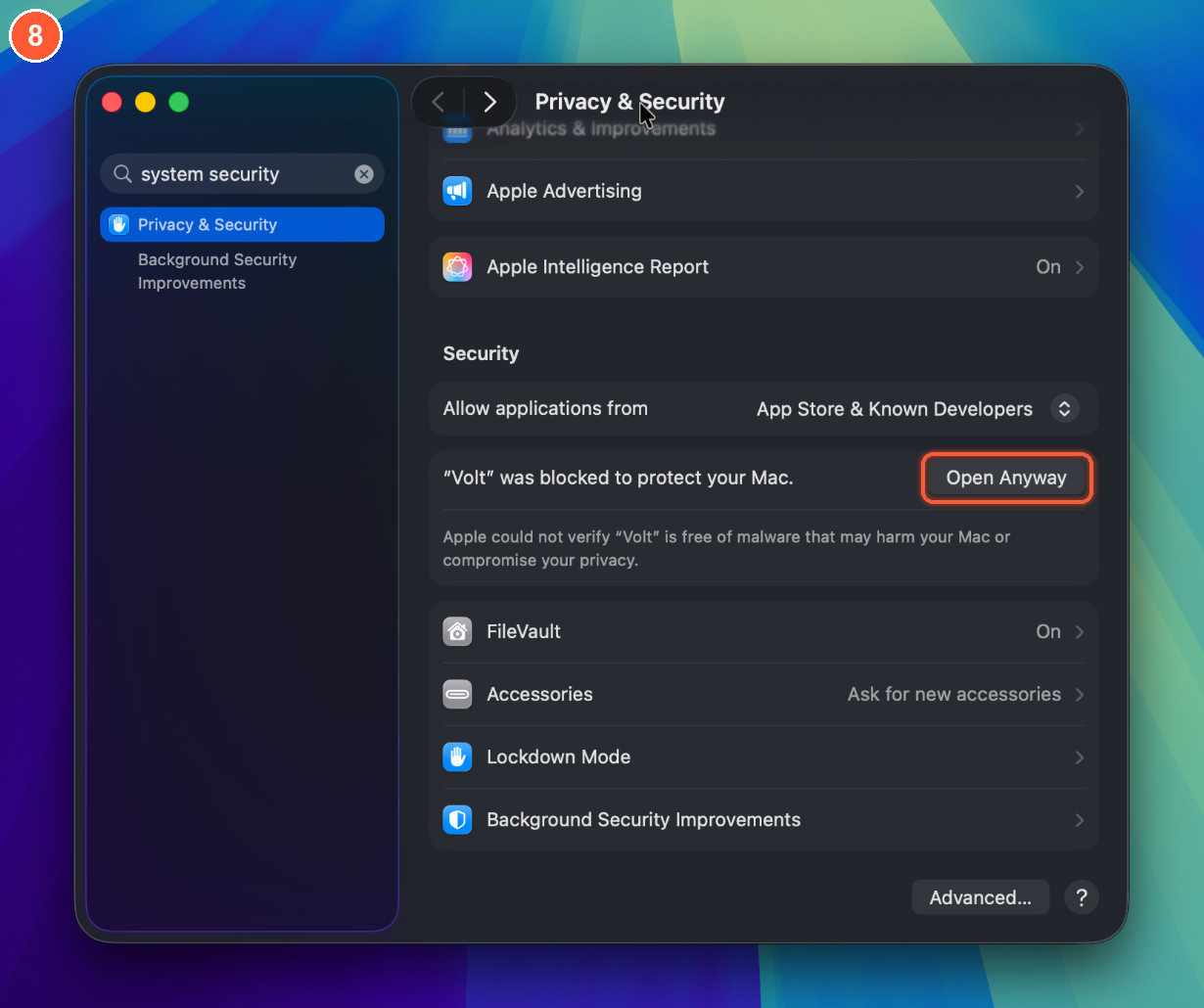
Scroll to Security and click Open Anyway
Next to "Volt" was blocked to protect your Mac there is an Open Anyway button.
No Open Anyway button?
The button shows for about an hour after you try to open the app. If you do not see it, open Volt again (the Open Volt step) and come straight back.
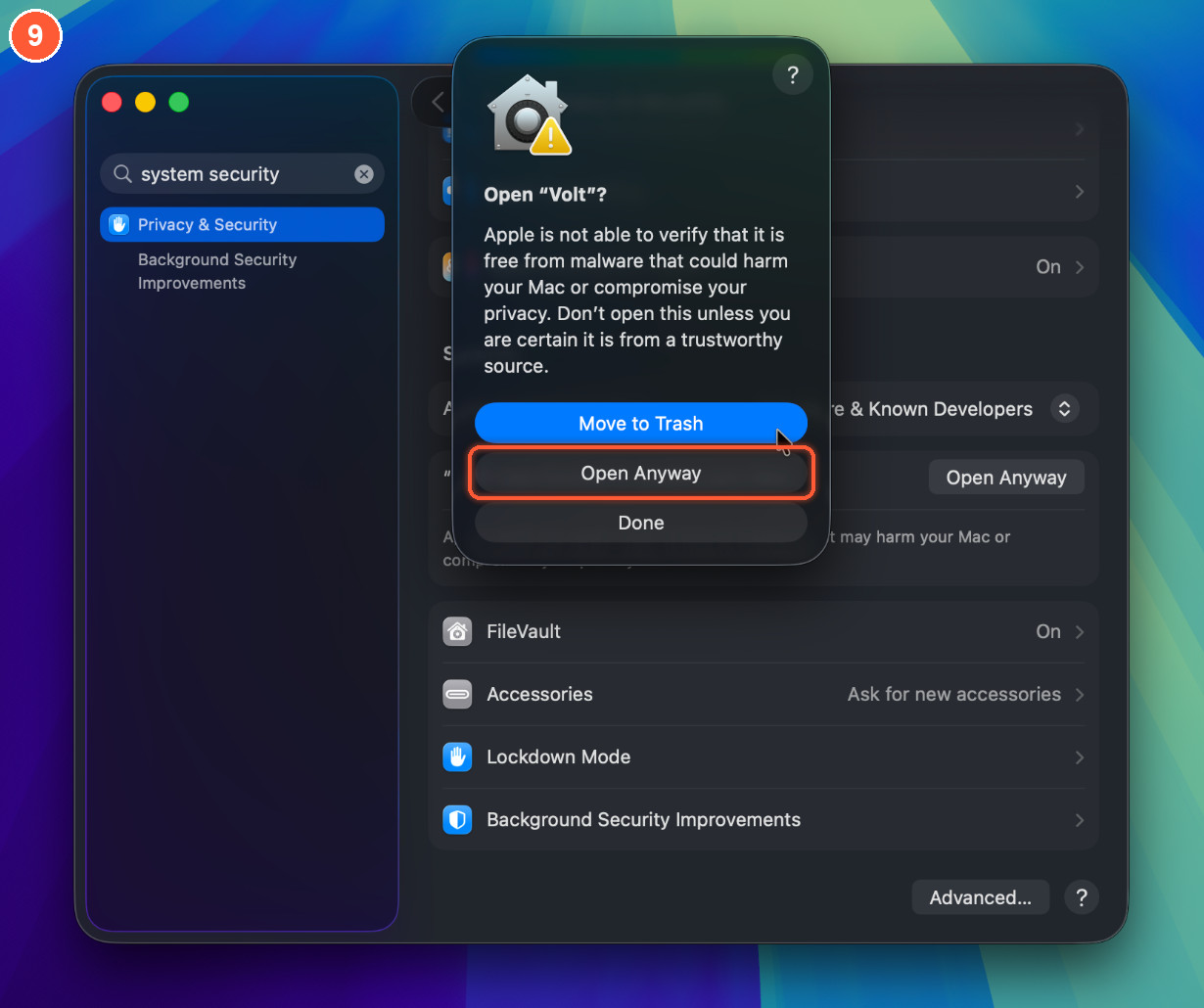
Confirm with Open Anyway again
A dialog asks Open "Volt"? The blue button is Move to Trash: do not click that one, and do not press Return. Click Open Anyway.
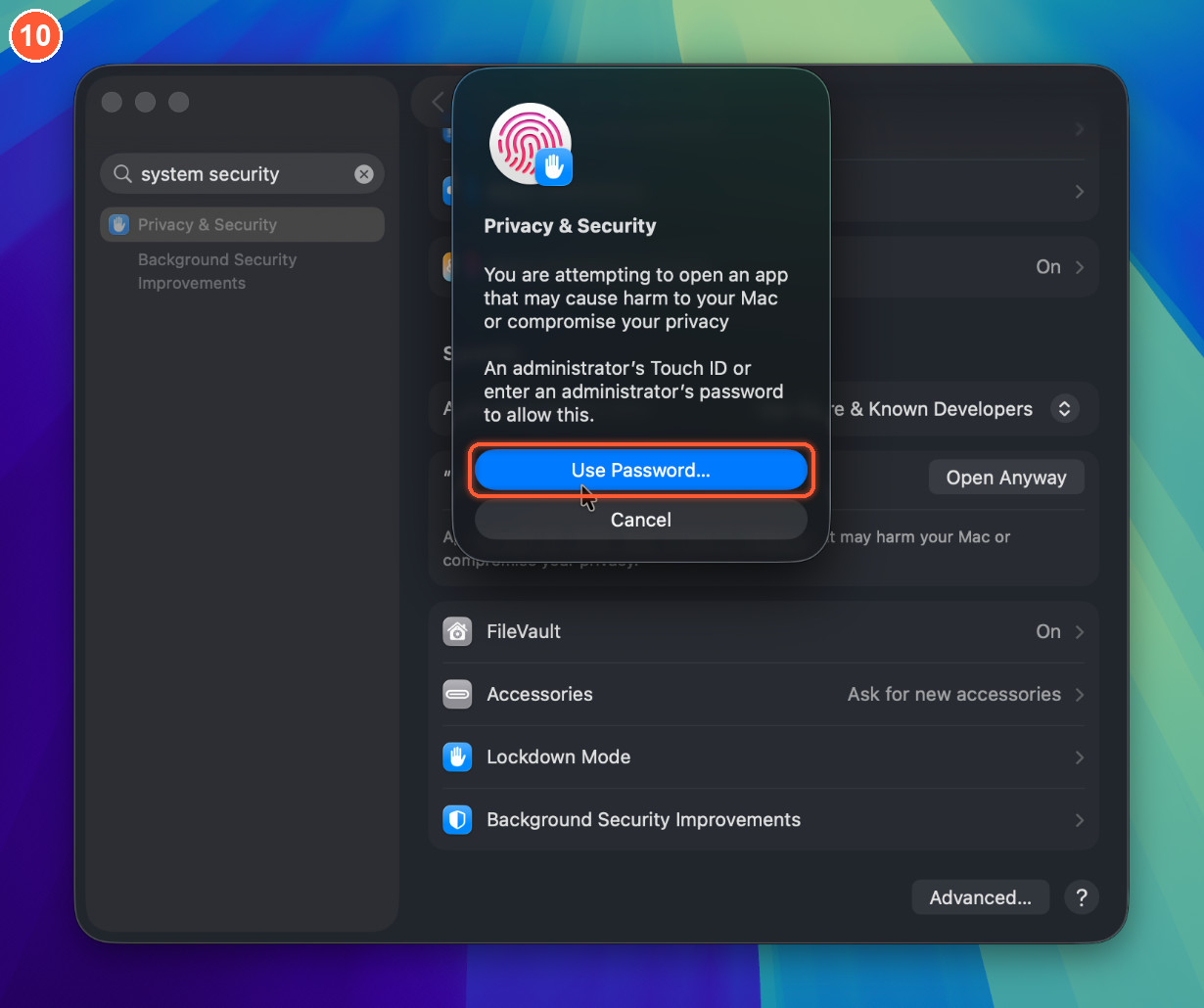
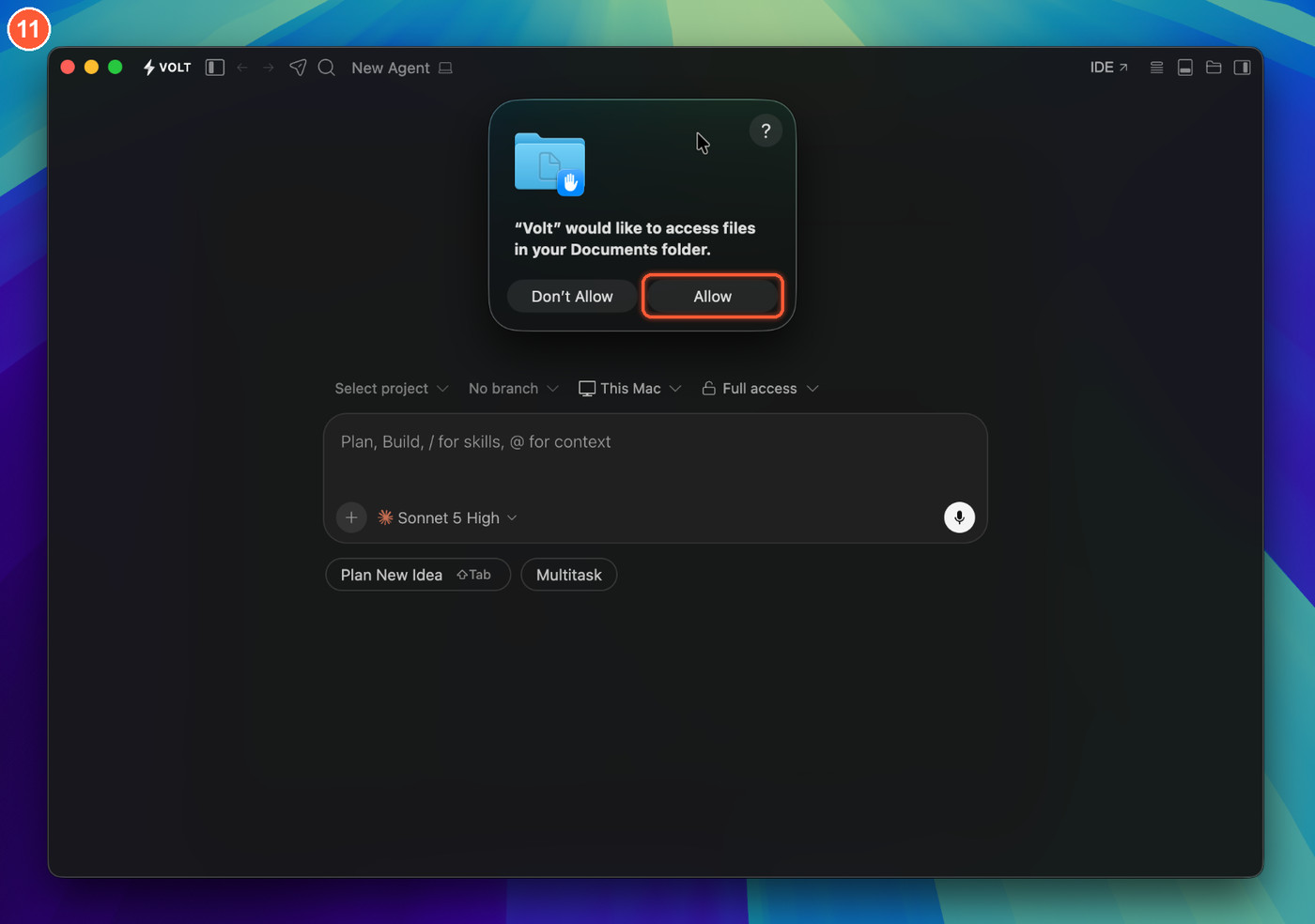
Volt opens
macOS may ask whether Volt can access files in a folder such as Documents. Click Allow so Volt can open your projects. You do all of this once; Volt opens normally from now on.
On macOS 14 and earlier there is a shortcut: Control-click (or right-click) Volt in Applications, choose Open, then click Open in the dialog.
"Volt is damaged and can't be opened"
The app is not damaged. macOS shows this when the quarantine flag and the app's ad-hoc signature disagree, most often after a download was unpacked by a tool that changed the app. Remove the flag in Terminal and open it again:
xattr -dr com.apple.quarantine /Applications/Volt.app
open -a Volt
Install from the Terminal
This installs the latest Volt for macOS or Linux. It checks the download's SHA-256 against the release and needs no sudo:
curl -fsSL https://raw.githubusercontent.com/LeulAria/VOLT/main/install.sh | bashOn a Mac it puts Volt.app in /Applications (or ~/Applications when that is not writable). On Linux it unpacks into
~/.local/share/volt and links ~/.local/bin/volt. Set VOLT_VERSION=0.0.2 to pick a version, or VOLT_INSTALL_DIR to
choose the folder. Read the script before you run it; it is short.
To do the same by hand on a Mac:
ARCH=arm64          # use x64 on an Intel Mac
VERSION=0.0.2

curl -fL -o ~/Downloads/Volt.dmg \
  "https://github.com/LeulAria/volt/releases/download/v${VERSION}/volt-stable-${VERSION}-darwin-${ARCH}.dmg"
hdiutil attach ~/Downloads/Volt.dmg -nobrowse -quiet
cp -R /Volumes/Volt/Volt.app /Applications/
hdiutil detach /Volumes/Volt -quiet
open -a Volt
Use Volt from the Terminal
Open Volt, press ⇧ ⌘ P and run Shell Command: Install 'volt' command in PATH. macOS asks for
your password once, because it links volt into /usr/local/bin. Open a new terminal window afterwards:
volt .                        # open the current folder
volt ~/code/my-app            # open a project
volt --new-window ~/code/my-app
volt --version
volt --help
You can also start Volt without installing the command:
open -a Volt                  # launch Volt
open -a Volt ~/code/my-app    # open a folder in Volt
/Applications/Volt.app/Contents/Resources/app/bin/code --version
To remove the command, run Shell Command: Uninstall 'volt' command from PATH from the same palette.
Windows
Download the installer
Pick volt-stable-<version>-win32-x64-user-setup.exe (no administrator rights needed). On a Windows on Arm PC, use win32-arm64.
The .zip is a portable copy you can unpack anywhere and run Volt.exe from.
Get past SmartScreen
Windows shows Windows protected your PC because the installer is not signed. Click More info, then Run anyway.
Finish the installer
Volt starts from the Start menu, and the installer adds a volt command to your PATH.
volt .          # open the current folder
volt --version
Linux
# Debian, Ubuntu
sudo apt install ./volt-stable-0.0.2-linux-x64.deb

# Fedora, RHEL, openSUSE
sudo dnf install ./volt-stable-0.0.2-linux-x64.rpm

# Any distribution, no root: use the install script above, or unpack the tar.gz and run the volt binary inside
tar xzf volt-stable-0.0.2-linux-x64.tar.gz
Then run volt or volt ..
Beta and Nightly
Volt ships three channels. Each one is its own app, so you can install them next to each other without sharing settings, and trying Nightly never touches your Stable install. Pick a channel on the download page.
| Channel | App | Command | Data folder | File name starts with |
|---|---|---|---|---|
| Stable | Volt | volt | ~/.volt | volt-stable- |
| Beta | Volt Beta | volt-beta | ~/.volt-beta | volt-beta- |
| Nightly | Volt Nightly | volt-nightly | ~/.volt-nightly | volt-nightly- |
The first-launch steps are the same for every channel; the dialogs just say Volt Beta or Volt Nightly.
Updating
Volt checks for new versions and tells you when one is out.
- macOS: because the build is not signed with a Developer ID, macOS will not let Volt replace itself. Volt opens the download; install it the same way as above and choose Replace. You may need to confirm Open Anyway again for the new build.
- Windows: setup installs download in the background and update in place. A zip install shows the download instead.
- Linux: Volt opens the download page.
Your settings, chats and projects live in ~/.volt (and ~/Library/Application Support/Volt on a Mac), so they carry over.
Uninstall
# macOS
osascript -e 'quit app "Volt"'
rm -rf /Applications/Volt.app
rm -f /usr/local/bin/volt        # only if you installed the shell command
rm -rf ~/.volt "$HOME/Library/Application Support/Volt"   # deletes your settings and chats; leave it out to keep them
On Windows, remove Volt in Settings > Apps. On Linux, remove the package with apt remove volt or dnf remove volt, or delete ~/.local/share/volt.
Troubleshooting
| What you see | What to do |
|---|---|
| "Volt" Not Opened / Apple could not verify "Volt" | Use Open Anyway in System Settings > Privacy & Security, as in the steps above. |
| Open Anyway is not in Privacy & Security | Try to open Volt again first; the button only shows after a blocked attempt, and only for about an hour. |
| The Open "Volt"? dialog has a blue Move to Trash button | Click Open Anyway below it instead. Pressing Return would choose Move to Trash. |
| "Volt" is damaged and can't be opened | Run xattr -dr com.apple.quarantine /Applications/Volt.app. |
| The icon bounces and nothing opens | You may have the wrong build. Use arm64 on Apple silicon and x64 on Intel (check with uname -m). |
| You do not have permission to open the application | A managed Mac (work or school) can block apps from outside the App Store. Ask your administrator, or run Volt from source. |
volt: command not found | Run Shell Command: Install 'volt' command in PATH in Volt, then open a new terminal. |
| Windows blocks the installer | Click More info, then Run anyway. |
Something else? Open an issue with your system, chip (uname -m on a Mac) and the Volt version
(Volt, then About Volt). Once Volt is installed, connect an agent and start a chat with ⌘ N.
Volt documentation
Volt is an end-to-end agentic development environment. Editor, canvas, Git, terminal, and AI coding agents in one native desktop app—workspace and canvas, side by side. Public beta; download for macOS, Windows, or Linux, or install via CLI.
Test page
Example Volt docs page for layout and SEO. Volt is the agentic IDE—editor, Git, terminal, and AI agents in one workspace.